
The ‘How-To’ section has replaced the Firefox Extension Guru’s Wiki. In this section we list all the blog posts with directions on ‘How-To’ show/hide, enable/disable, add/remove and fix different things within Firefox. Please be aware that making these changes (especially if done incorrectly) can result in breaking Firefox. Please see the Disclaimer section for more information. Also note as newer versions of Firefox are released, some tweaks may stop working. If a tweak no longer works, please leave a comment on the post so that we can see if there is new information.
Below are some general usage instructions on how to edit your ‘user’ files, locate your Profile Folder and using Firefox’s built-in preference manager (about:config). If you wish to skip down to the ‘How-To’ section click here.
userChrome.css or userContent.css files
Some of the tweaks require modification to your userChrome.css and/or userContent.css files located in the chrome folder within your profile folder. Important warnings:
- Changes made to the userChrome.css and/or userContent.css files can NOT be undone once saved. Therefore before making any changes to the userChrome.css file make a back-up copy first.
- Firefox needs to be closed before saving changes made to your userChrome.css and/or userContent.css files. Firefox writes to these files upon exit and will override any changes you made if not closed first.
- DO NOT REMOVE the line which starts with: @namespace in the userChrome.css file
- This file should only be edited with a text-editor such as Notepad or Notepad++. It is NOT recommended using MS Word or similar Word Processor applications. For best results we recommend using the ChromeEdit Plus Extension. The extension will automatically locate your userChrome.css and userContent.css files and open them in an external editor. You will be able to modify these files, save your changes and restart Firefox.
Preferences Manager (about:config)
Some of the tweaks are done though the about:config interface where users preferences can be viewed and modified. To access the about:config settings Open a new tab and in the address bar type about:config then press enter. Note: If this is your first time accessing this interface you will get a humors warning. Click the I’ll be carefulbutton to proceed. More information on the about:config entries can be found on mozillaZine about:config entries.
Locating Your Profile Folder
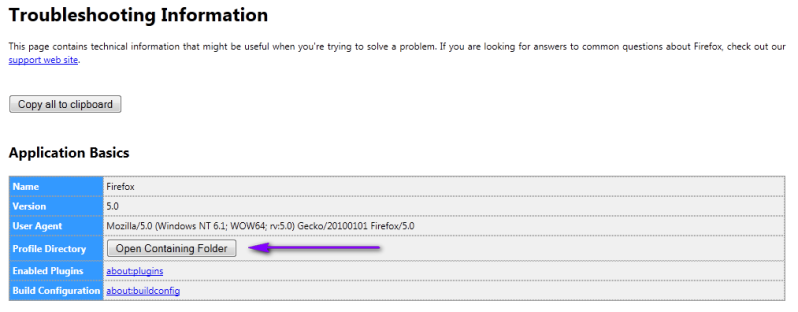
From the Firefox Menu, select Help > Troubleshooting Information. In the Application Basics section click the Open Containing Folder button.
How-To
- ‘Couldn’t load XPCOM’ Error on Startup
- “Reseting” Adblock Plus
- Add information to Firefox about:config preferences
- Add-ons ‘Install’ Button
- Adjust Tabs Font Size
- Animated GIFs
- Block Firefox from connecting to sites when you hover over links
- Change Autoscrolling
- Change Default Text Editor in Fx
- Change Spellcheck Language
- Change Update Reminder Frequency
- Changes to ‘Esc’ key behavior
- Changing Mousewheel Behaviors
- Cleaning Up Firefox After a Malware Mishap
- Disable Apostrophe from Opening QuickFind Bar
- Disable Extension Signing in Nightly and Developer Builds
- Disable Firefox Add-on Controls
- Disable Switch-to-tab
- Disable Tab Tearing
- Download Manager Tweak
- Enable 1080p YouTube Support in Firefox 40 for Linux
- Enable the Built-in PDF Reader in Firefox 15
- Firefox 29 and Australis
- Firefox 40 and Windows 10 Default Browser
- Firefox Is Already Running (but it is not) Error
- Firefox prefetching: what you need to know
- Fix ‘Close Other Tabs’ Warning ‘Fix’
- Fix Add-ons not working in Firefox 35
- Fix Unresponsive Script Warning
- Fix YouTube 'Jumpiness' In Firefox
- Flash Video in New Window Jumps back to Previous Window
- Forcing Add-ons To Work
- Fx 3: Removing The Search ‘Go’ Button
- How to block Canvas fingerprinting
- How to disable auto-playing Flash and HTML5 videos
- How to Enable Right-click
- How to Get Rid of the Ads on the Firefox New Tab Page
- How to make sure that a Firefox plugin never activates (again)
- How to Remove Babylon From Firefox
- How to remove IncrediMail MyStart from the Firefox browser
- How to Remove MySearchResults
- How to Remove the AVG Security Toolbar
- How to remove the Dropbox Update plugin from Firefox
- How to restore Firefox sessions if Session Restore is not working correctly
- How to show the full URL in Firefox
- How to show the full URL in Firefox Part 2
- How to turn the new Firefox 29 into the old Firefox
- How-To: Change AdBlock Plus Sidebar Shortcut
- How-To: Disable Pocket
- Import Dictionary
- Increasing mouse scroll speed in firefox on Linux
- Mailvelope: use OpenPGP encryption on Gmail, Yahoo, Hotmail and other webmail services
- Manually Update Add-ons to Work
- Modify Firefox settings on the Web
- Move Stop/Go/Reload to Left Side
- Move Tabs on Top - Option Not In Menu
- Old ‘Status Bar’
- Password Exporter
- Prevent Websites From Resizing Firefox Window
- Remove ‘Live Feed’ Button
- Remove Bookmark ‘Star’ Button
- Remove duplicate bookmarks in Firefox
- Remove Extra Plugin Containers
- Remove New Tab Button
- Remove New Tab Home Page
- Remove Unsorted Bookmarks Item
- Remove Words From Fx Dictionary
- Removing Java Console Extensions
- Replace Firefox Default Favicon
- Restore Old Default Image Style
- Restore Old Firefox Context Menu
- Restoring default about:config settings
- Show Full URLs
- Starting with a Fresh Profile
- The New Firefox Sync (Firefox 29)
- Turn Off RealPlayer “Download” Button
- Unhide Forward Button
- Warning Unresponsive Script